In this task, we need to examine the disk disko-2.dd, specifically its Linux partition, and find the flag there.
Let’s start by reviewing the sections on the disk, the sector size, and the offset of the sections from the beginning of the files:
TIP
Algorithm of using Sleuth kit tools for examining disks in Forensics challenges I left here: click
mmls disko-2.dd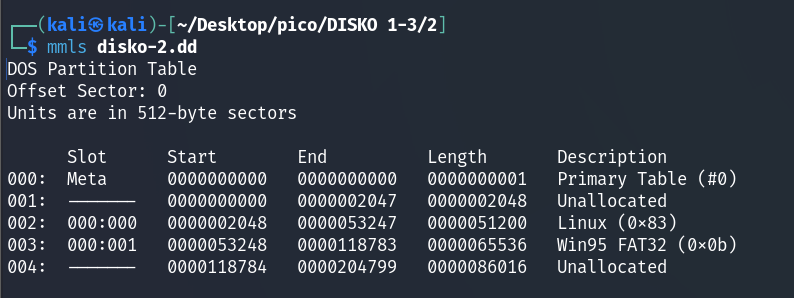
or:
fdisk -l disko-2.dd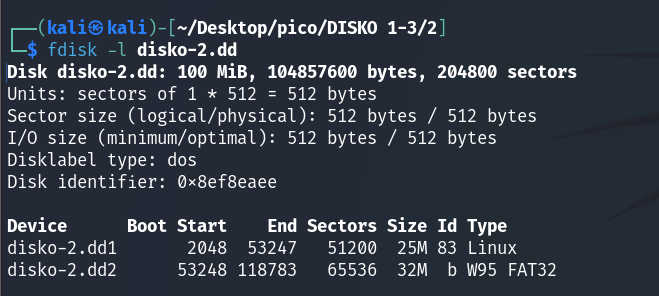
There are several partitions, but for the purposes of this task, we are interested in Linux (0x83). Let’s mount the disk:
dd if=disko-2.dd of=part1.img bs=512 skip=2048 count=51200
sudo mkdir /mnt/part1
sudo mount -o loop part1.img /mnt/part1/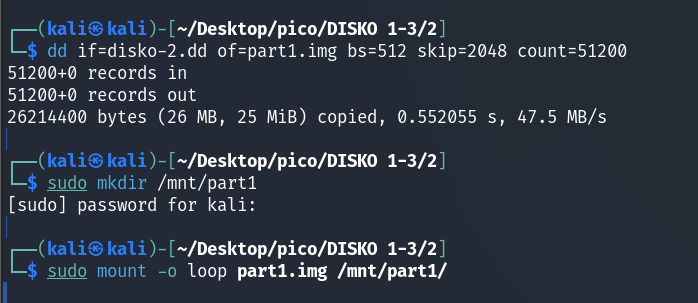
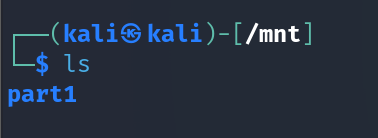
where:
dd(dataset definition) — is a powerful tool for copying and converting files. It copies data from the input file (if=...) to the output file (of=...).if=disko-2.dd:ifinput file. We specify that the input file is our disk imagedisko-2.dd.of=part1.img:ofoutput file. We create a new filepart1.img, which will contain only our Linux partition.bs=512:bsblock size. We set the copy block size to 512 bytes becausemmlssaid that the sector size is 512 bytes.skip=2048:skipskip N blocks. We skip 2048 blocks (sectors) from the beginning ofdisko-2.dd(from 0 to 2047) because our Linux partition starts at sector 2048.count=51200:countcopy N blocks. We copy 51200 blocks (sectors) because the length of our Linux partition is exactly 51200 sectors.
Use the lsblk command to verify that /mnt/part1 is mounted as loop0:
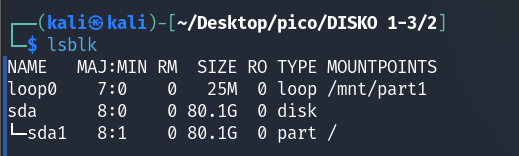
NOTE
Loop-device - it is a virtual block device. It allows you to open a file (for example, a disk image) and “trick” the system into thinking that it is a real physical device (such as a hard drive or flash drive). This is necessary for mounting.
How to manage loop devices: click
or use losetup -a:

But there is nothing useful in either /mnt/part1/bin or /mnt/part1/lost+found.
Let’s look for strings:
strings disko-2.dd | grep -F 'picoCTF{'where -F (fixed strings) allows to avoid character escaping. All special characters will be treated as regular characters.
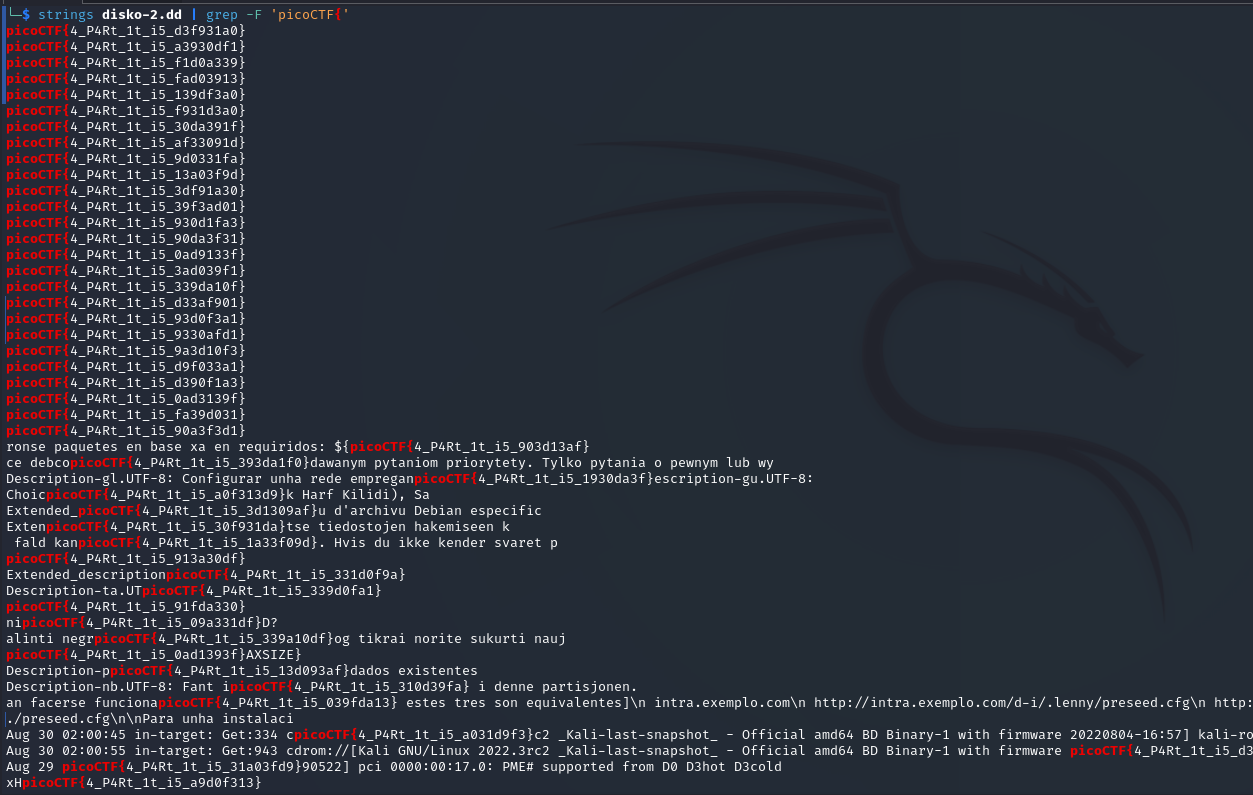
We have a bunch of flags that can be sorted manually, or done in 2 methons which I peeked at this write-up:
I method
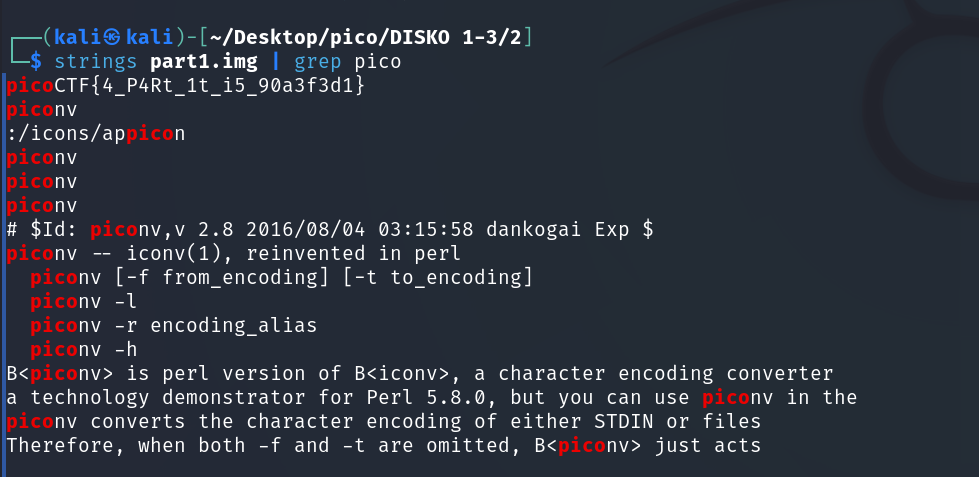
For the first method strings and grep is enough to get a valid flag:
Since losetup -a showed us that part1.img is in the same directory as disko-2.dd, we execute it there:
II method
Let’s use BurpSuite to brute force the flags.
First configure the proxy to 127.0.0.1:8080:
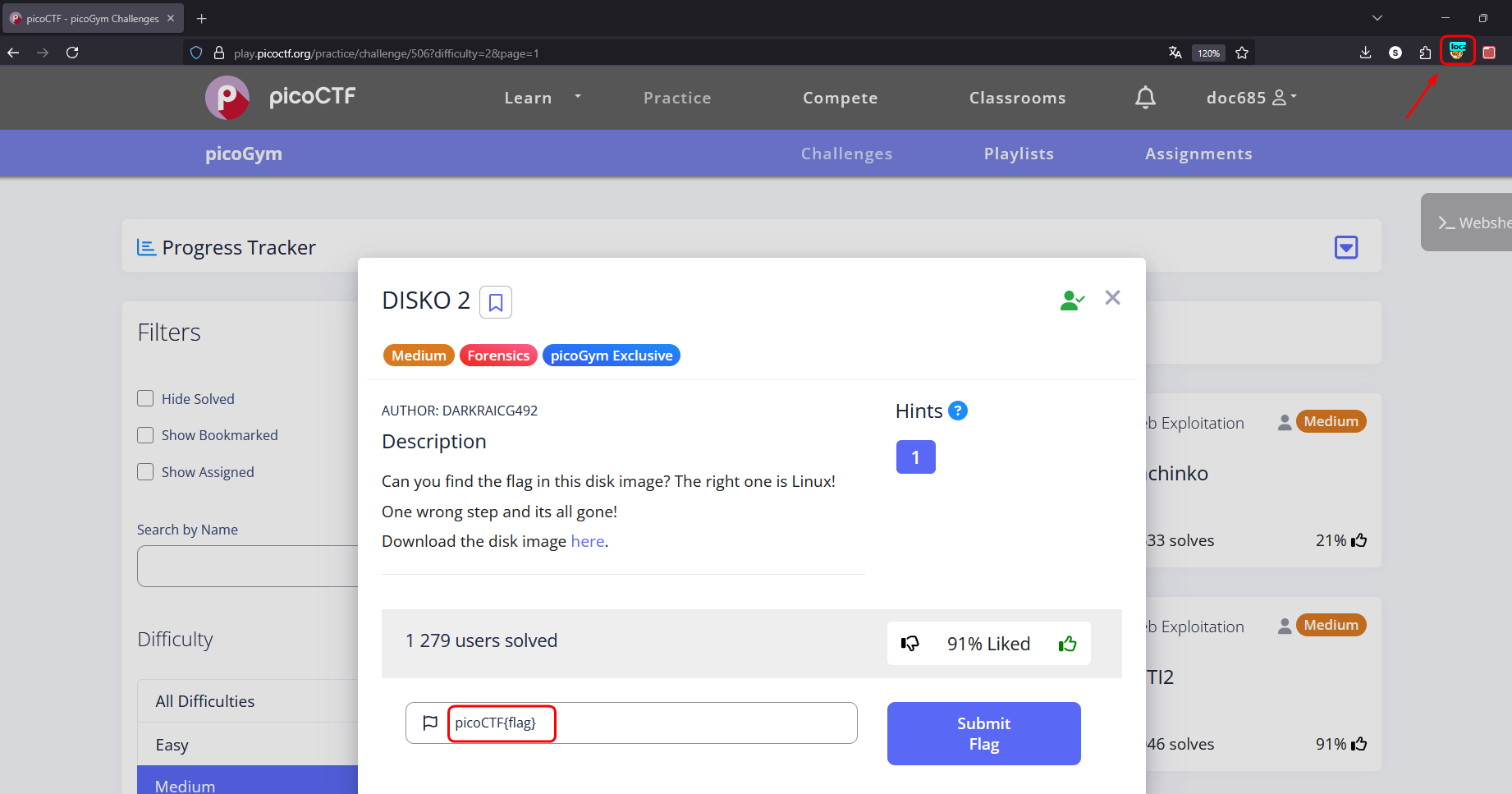
Catch the request with an arbitrary flag and Send to Intruder:
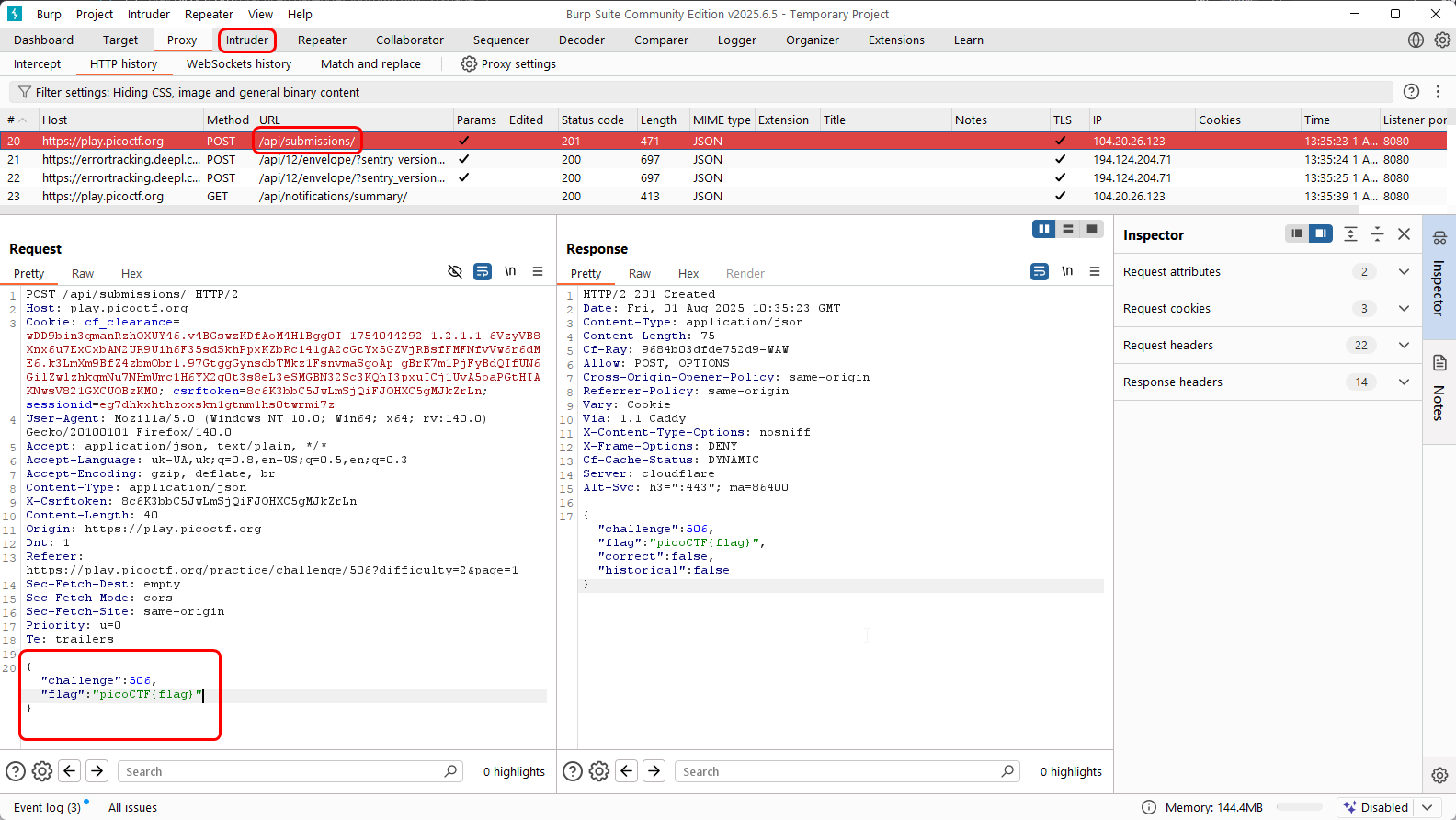
Before creating a Simple List to iterate through payloads, we need to extract flags without unnecessary text. To do this, we will use a regular expression for grep:
strings disko-2.dd | grep -o -E 'picoCTF\{.*\}'let’s examine this command:
grep -o -E: Runsgrepwith the options “only match” and “Extended regular expressions”.\{: We escape{symbol, because it has a special meaning in regular expressions..*: This is a pattern that means “any character (.) zero or more times (*)“. This will capture the content inside the brackets.\}: escaped}symbol.
We can make the pattern even more precise, since we know that the flag contains only letters, numbers, and underscores.:
strings disko-2.dd | grep -o -E 'picoCTF\{[a-zA-Z0-9_]+\}'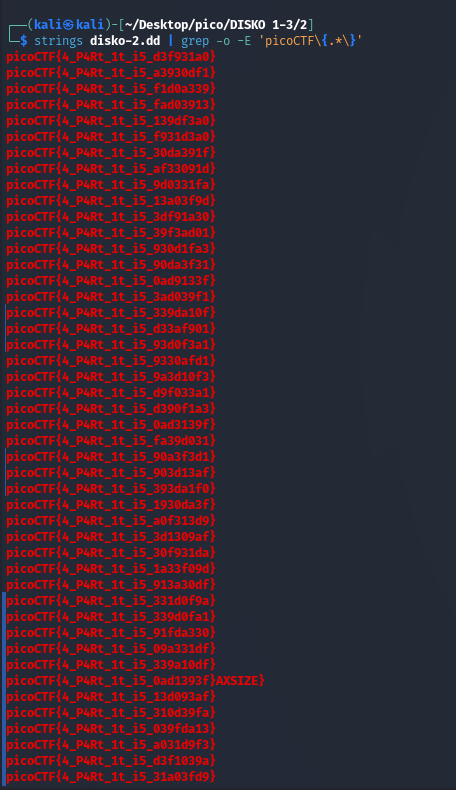
TIP
If you want to try on your own and have Burp Professional, I left list with flags here: click
then Simple List:
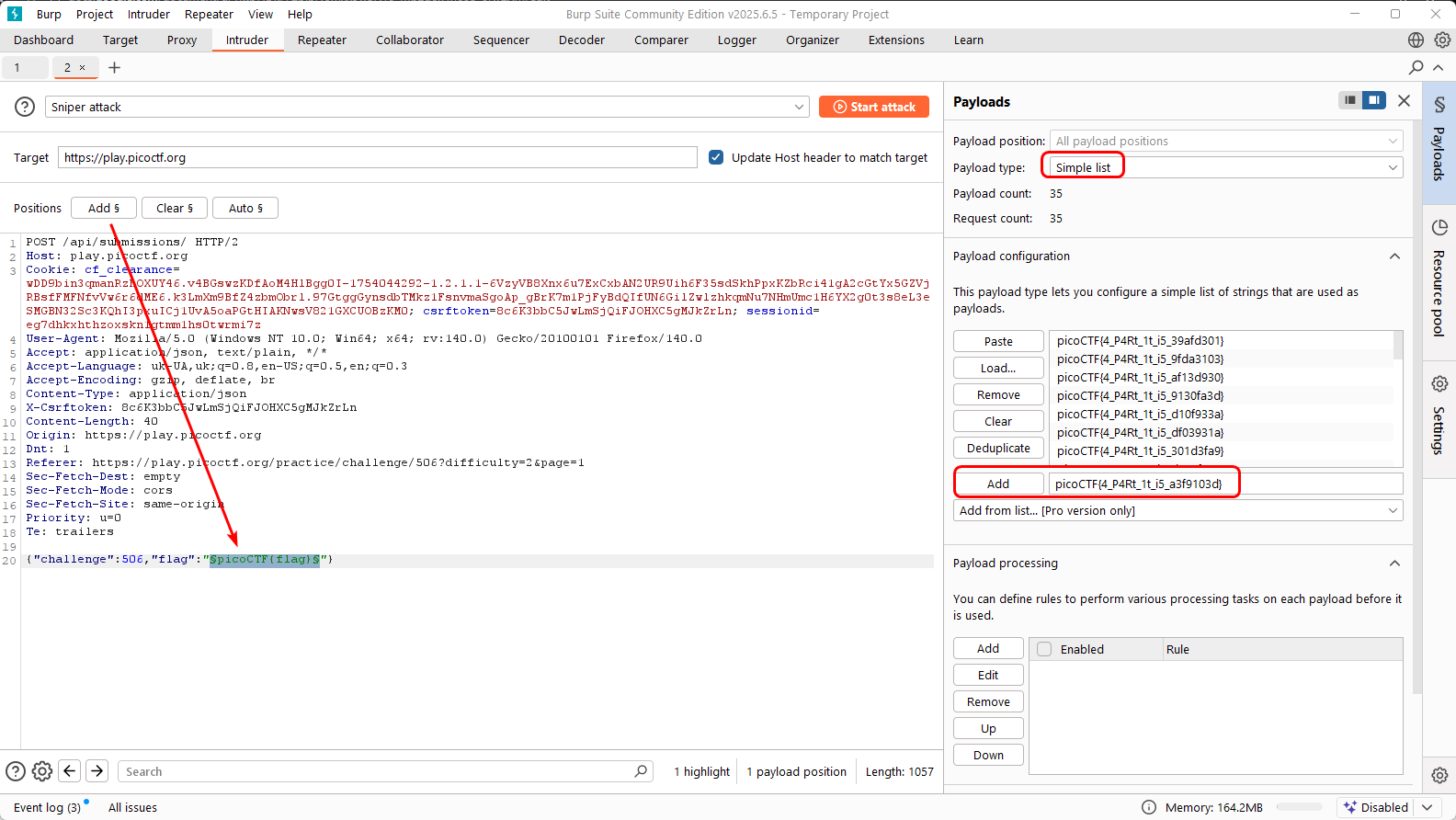
Be sure to disable URL Encoding:
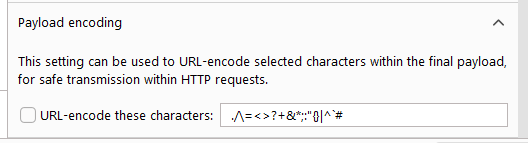
Otherwise we’ll get:
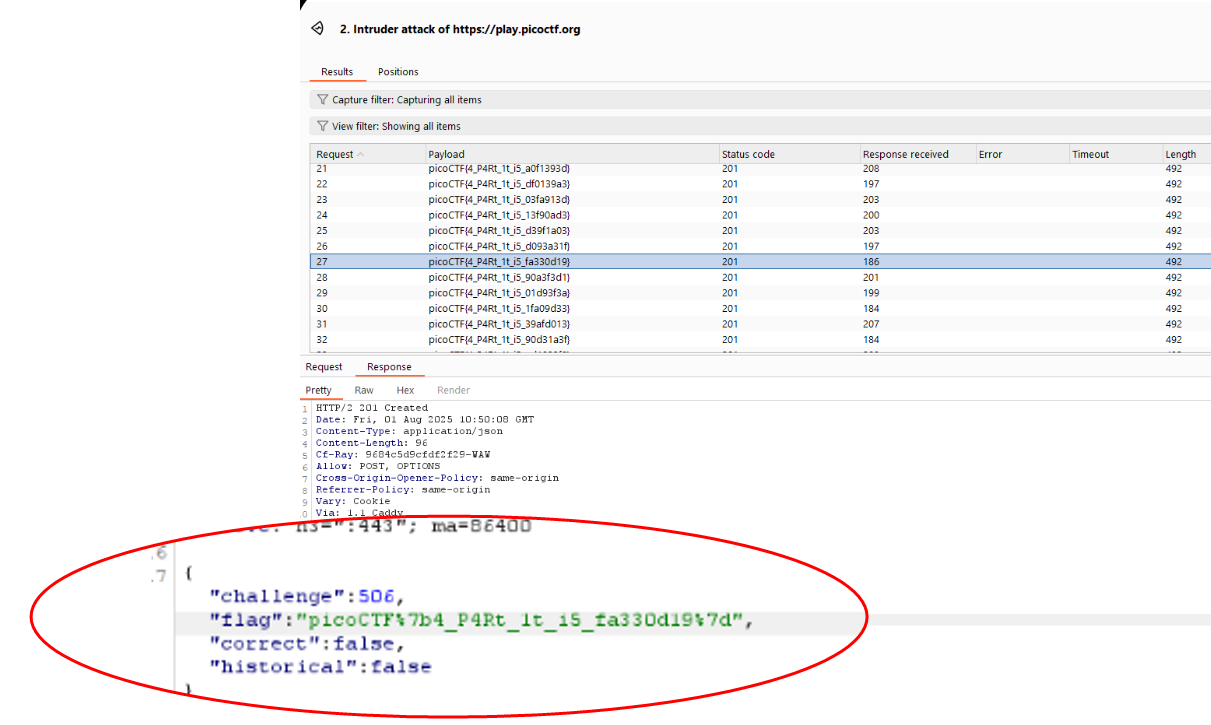
Start Attack:
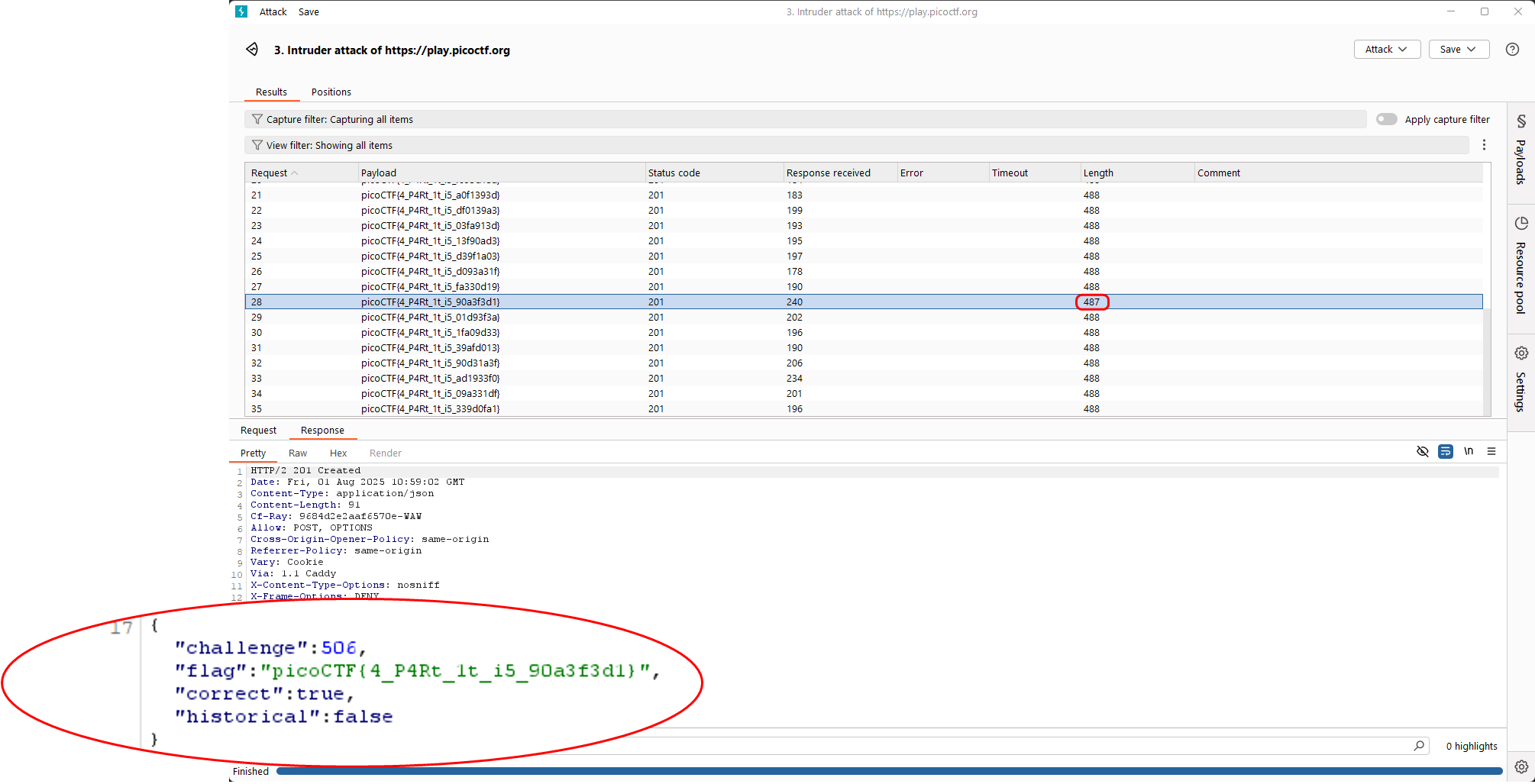
picoCTF{4_P4Rt_1t_i5_90a3f3d1}
Notes
NOTE
notes I wrote during solving this task. I already mentioned this commands in my note for examining disks, but, anyway, let it be here.
partitions:
mmls disko-2.ddor:
fdisk -l disko-2.ddcheck file system:
fsstat -o 2048 disko-2.dd > 'fsstat Linux (0x83) 2048.txt'
fsstat -o 53248 disko-2.dd > 'fsstat Win95 FAT32 (0x0b) 53248.txt'
<name txt> | grep 'File System Type'
check directories:
fls -i raw -f ext4 -o 2048 -r disko-2.dd > 'dir Linux (0x83) 2048'.txt
fls -i raw -f fat16 -o 53248 -r disko-2.dd > 'dir Win95 FAT32 (0x0b) 53248'.txt
read:
icat -i raw -f ext4 -o 2048 -r disko-2.dd <inode>
Extract the partition into an .img format and mount the volume
dd if=disko-2.dd of=part1.img bs=512 skip=2048 count=51200 (skip 0-2047)
sudo mkdir /mnt/part1
sudo mount -o loop part1.img /mnt/part1/